How to build your AI powered, personal, command center (CRM)
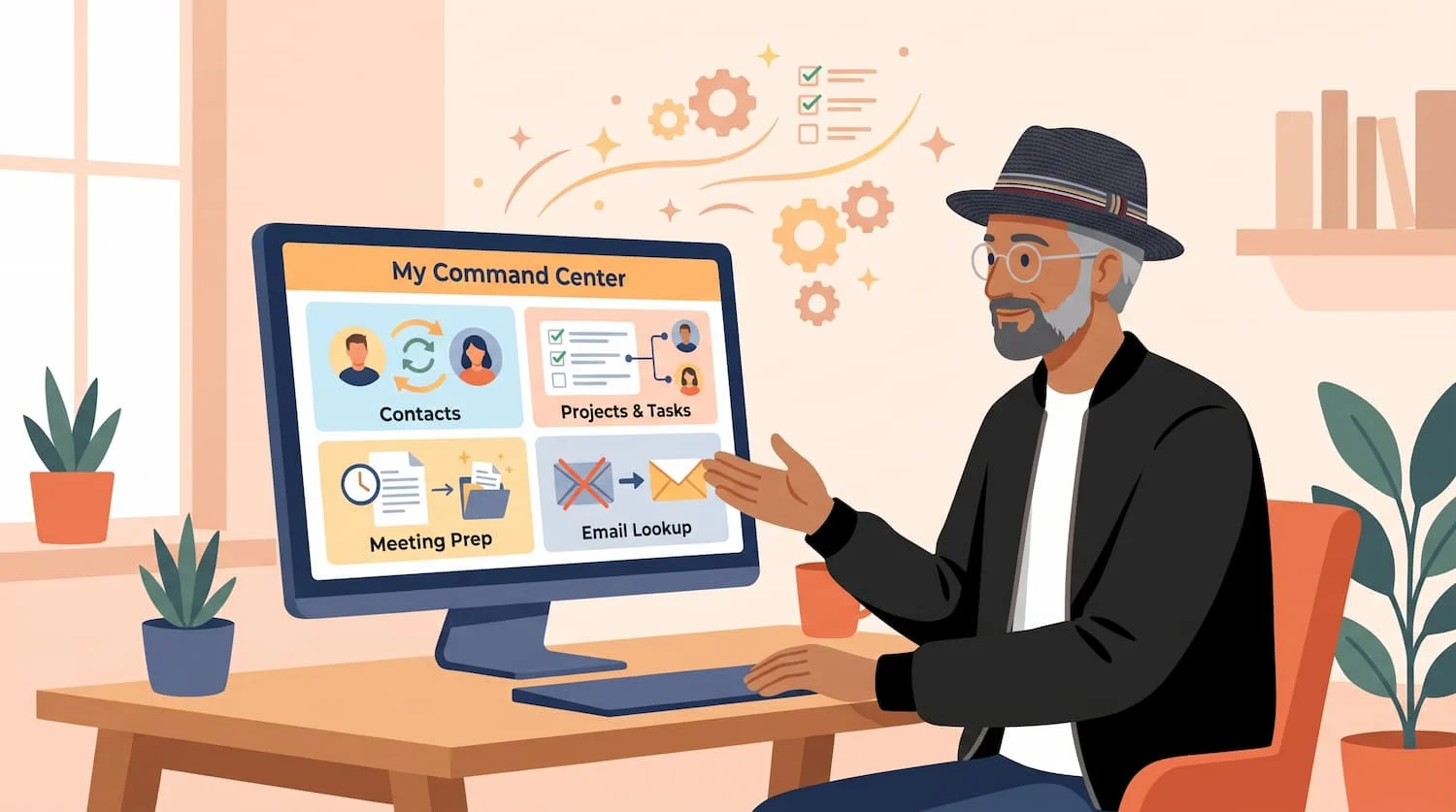
I built my own command center using AI. It's a personal CRM and project planning tool that helps me stay organized. A few of my favorite features are:
- All my contacts in one place, updated automatically from my meetings or email threads.
- All my projects, tasks, and contacts in one place, where I always know what is the next thing I need to do, and who is involved.
- Meeting prep that happens automatically. My system knows who I'm meeting with each day and will proactively create a prep doc for that meeting, including information form past meetings with that person and any open tasks related to projects associated with that person.
- Email lookup. I frequently go to email someone only to realize they have changed jobs and I have an old work email. Now, in my CRM, I press a button and instantly have their new work email. It's like magic!
Recently a friend asked if I could help her build something similar. And, I figured, if she wants to know, other people might want to know as well. So, I had Claude pull together a full overview of my setup and draft up how to put it all together. The section below is Claude's draft, and I hope it's helpful!
Part 1: The Platforms That Power It
Core accounts (required)
- Lovable — Builds the app itself: the screens you click around in, like the dashboard, contacts, and projects. A paid plan is realistic, since a build this size uses a lot of credits.
- Supabase — The database behind everything. It stores your contacts, notes, meetings, emails, projects, and goals, and it runs the behind-the-scenes jobs that sync your data on a schedule. (Note: It's better to have this separated from Lovable so that your chatbot AI tool can more easily access it, and it gives you more flexibility for the future. Though, if you prefer to keep things simple, you can use the Lovable built-in cloud database.)
- Granola — Transcribes your meetings and writes up the notes. Check which Granola plan gives API or MCP access, because the sync into Supabase depends on it.
- Google Workspace or Gmail (one account per email address you want pulled in) — Powers both the email and calendar features. If you use Outlook instead, you will need Microsoft 365 plus a Microsoft Entra app registration.
- Google Cloud Console project — The step most people miss. You need it to turn on the Gmail and Google Calendar APIs and create login credentials (OAuth) so the app is allowed to read your inbox and calendar. (This step is complicated, but Claude in Chrome is pretty good at navigating this for you.)
- Todoist (or whichever task manager you actually use, assuming it has an API) — Feeds the project management side: tasks inside projects and the daily top 3. You can skip it if you'd rather keep tasks inside the app.
- Claude (Pro or Max) — Runs the jobs that use AI judgment rather than plain syncing, like matching emails to the right contact, routing items to the review queue, and suggesting the "next best step." It also connects to Granola, Gmail, and Supabase. (This can also be run via the ChatGPT API, or even with Lovable's AI tools.)
Recommended
- Domain registrar (Namecheap, Cloudflare, GoDaddy, etc.) — For a custom web address like yourname.com.
- GitHub (free account) — Lovable can sync the code here, so you have a backup and version history outside Lovable.
- AI provider API key (Anthropic or OpenAI) — Only needed if in-app AI features (summaries, next best step) run inside Supabase instead of through Lovable's built-in AI or Claude.
- Password manager — There will be a lot of API keys and secret codes to keep somewhere safe.
Optional
- Spark (or another desktop email app) — If you want to send emails yourself while the app only writes the drafts.
- Zoom (or another video tool) — If you add the booking page and want a default meeting link.
- Email Hunter (free account) — To help you find email addresses for any contact that you don't currently have an email address for.
Heads-up: The biggest setup headache is usually the Google Cloud login step (items 4 and 5), especially getting approval to read Gmail. Do that early.
Part 2: What the App Does
1. Meeting Notes
- Automatic notes. Granola transcribes your meetings and writes up the notes, so you don't have to type during the call.
- Notes land in the right place. After each meeting, the notes are filed under the people you met with. Open a contact and you see every conversation you've had with them.
- New people get flagged. If someone in a meeting isn't in your contacts yet, the app suggests adding them instead of letting them slip away.
- Promises become to-dos. Anything you said you'd do ("I'll send that proposal Friday") shows up as a task.
2. The CRM (Your People)
- One address book for everyone. Clients, prospects, friends, and past colleagues all live together, with their contact info and how you know them.
- A history with each person. Every email, meeting, and note shows up on that person's page, so before a call you see the whole relationship at a glance.
- "Last talked to" tracking. The app knows when you last connected with each person and tells you who you're losing touch with.
- Reconnect queue. It suggests people worth reaching out to and drafts a short catch-up email. You review it and send it yourself. The app never sends on its own.
- Review queue. When the app isn't sure about something (a new job title, a possible new contact), it asks you to approve it instead of changing things behind your back.
3. Calendar
- Your schedule in one view. Meetings from all your calendars show up together.
- Meeting prep. Before a meeting, see who you're meeting and your history with them.
- Booking page (optional). A Calendly-style page where people pick a time with you. It respects your rules: protected focus time, buffers between meetings, no weekends, and special links for people who get extra access.
4. Email
- Email feeds the CRM automatically. The app reads your inbox each day and logs real conversations against the right contact. Newsletters and junk are ignored.
- Contact info stays fresh. If someone's email signature shows a new title, company, or phone number, the app suggests updating their record.
- Follow-up tracking. It notices when you've sent a reconnect email and when the person writes back, so nothing falls through the cracks.
- Bad addresses get cleaned up. Bounced emails are flagged so your list stays accurate.
5. Projects and Goals
- Projects page. Every project you're working on, showing which are active, which you've starred as most important, and which need attention.
- Tasks inside each project. To-dos (from Todoist or the app itself) appear under the project they belong to.
- Goals. Projects can have goals you're tracking toward. Projects without a goal aren't flagged as a problem.
- "Next best step." For your most important projects, AI suggests the one thing to do next, refreshed nightly or whenever you ask.
- Snooze and dismiss. If an alert isn't relevant right now, you can hide it.
Tying It All Together: The Dashboard
- Top 3 for today. One short, editable list of what matters most today, pulled from tasks, meeting follow-ups, and open commitments.
- Open commitments. Things you promised people, with a one-click way to turn them into tasks.
- Heads-up. Only new things that need a response or that change your day.
- Pipeline actions. A separate block for the next steps on potential deals.
- Habits (optional). Daily routines you want to track, with a streak counter.
What Runs Behind the Scenes
- Nightly syncs. Every night the app pulls in that day's meetings and emails and updates your contacts.
- You stay in control. The app suggests and drafts, but you approve, edit, and send. Anything it gets wrong, you can change.
Part 3: Which Platform Powers Which Feature
Feature Platforms Meeting notes Granola, Supabase, Claude CRM Supabase (data), Lovable (screens), Claude (enrichment and drafts) Calendar Google Calendar, Google Cloud Console, Supabase Email Gmail, Google Cloud Console, Supabase, Claude; Spark optional for sending Projects and goals Supabase, Lovable, Todoist, Claude Dashboard Lovable, Supabase
Suggested Build Order
- CRM (contacts first, since everything else attaches to them)
- Meeting notes
- Calendar
- Projects, goals, and the dashboard
Keeping It Secure
This app ends up holding some of the most sensitive data you have: access to your inbox and calendar, summaries of your meetings, and personal details about hundreds of people who trusted you with them. If someone else got into it, they could read your email history and your notes on everyone you know. None of the security steps below are hard, but several of them are much easier to do at the start than to fix later. That's why security is built into every phase of the build instead of saved for the end.
The rules that matter most
- Only you can log in. It's a one-person app, so turn off public sign-ups once your own account exists. This is the step people miss most often.
- Two-factor login everywhere. Turn it on for Lovable, Supabase, Google, GitHub, Granola, and Todoist. Anyone who gets into one of those accounts can get into your data.
- Keys stay locked up. API keys and Google login tokens live only in Supabase secrets or Supabase Vault, never in the app's code, the Lovable chat, a document, or an email. Keep your own copy in your password manager.
- Read-only wherever possible. The app reads your email and calendar but doesn't send email, so it only asks Google for read-only access. The one exception is the optional booking page, which needs permission to create calendar events.
- Store only what you need. The app keeps email subject lines, snippets, and who was on the email, not full email bodies. Meeting transcripts stay in Granola; only the summaries come into the app.
- Private by default. The Lovable project and GitHub repository stay private. The optional booking page is the only part of the app anyone else can see.
- Check as you go. Every phase ends with a security check, so mistakes get caught when they're one prompt old instead of twenty.
Two things to think about
- AI tools with access to your data. Once Claude (or another AI tool) is connected to Supabase, it can change data, not just read it. Use it the same way the app works: it reviews and suggests, and you approve before anything changes.
- Other people's information. The CRM is full of details about people who never signed up for it. Don't give team members, assistants, or contractors access without thinking through what they'd be able to see, and don't paste big chunks of it into tools you haven't vetted.
Part 4: Step-by-Step Build Methodology
This section assumes every account in Part 1 is already set up. The build runs in eight phases (Phase 0 through Phase 7). Each phase has a few things to do by hand, one or more prompts to paste into Lovable, a short check to run, and a security check before you move on.
Ground rules for the whole build
- One prompt at a time. Paste a prompt, let Lovable finish, test it, then move on. Stacking several prompts before testing makes problems hard to find.
- Use Plan mode for big prompts. For anything that creates tables or background jobs, turn on Plan mode first, read Lovable's plan, then approve it.
- Never paste keys into the Lovable chat. API keys and secrets go into Supabase (Project Settings > Edge Functions > Secrets) or Lovable's secure secret prompt. The prompts below refer to secrets by name only.
- Run the security check at the end of every phase. In Supabase, open Advisors > Security Advisor and fix anything it flags before starting the next phase. If you're not sure how to fix something, paste the warning (not any keys) into Lovable and ask it to fix it.
- Test with real data early. Import real contacts in Phase 1 so you can tell whether email and meeting matching actually works.
- When Lovable gets stuck, roll back to the last working version from the edit history and re-send a smaller version of the prompt.
Phase 0: Foundation
Do by hand: Accounts and secrets
- Turn on two-factor login for Lovable, Supabase, Google, GitHub, Granola, and Todoist if you haven't already.
- Create a new project in Lovable and make sure its visibility is set to private.
- Connect it to your existing Supabase project using Lovable's Supabase integration (instead of Lovable Cloud).
- Connect the project to GitHub and confirm the repository is private.
- In Supabase, add these secrets (only the ones you'll use). Save a copy of each in your password manager.
- In Supabase, turn on backups (on paid plans, Point-in-Time Recovery gives you the most protection).
- Paste the text below into Lovable's Project Knowledge so every future prompt has the big picture.
Project Knowledge (paste into Lovable Project Knowledge, not the chat)
This is a single-user personal command center: a CRM, meeting notes hub, email and calendar sync, and project and goals tracker for one person. It holds highly sensitive data, so security is a requirement in every change, not an afterthought. Principles: (1) Contacts are the center of everything; emails, meetings, notes, and commitments attach to contacts. (2) The app never sends email on its own; it only drafts. (3) Anything automated that the app is unsure about goes to a Review Queue for approval instead of changing data directly. (4) Every sync is idempotent: store the source system's ID with a unique constraint so re-running a sync never creates duplicates. (5) Every table has Row Level Security turned on with owner-only policies, including tables added later. (6) API keys, OAuth tokens, and the Supabase service role key are only used inside Supabase Edge Functions, never in the browser or in frontend code. OAuth refresh tokens are stored in Supabase Vault or a table no browser role can read. (7) Every Edge Function verifies the caller is the signed-in owner unless it is explicitly meant to be public. (8) Store only what's needed: email metadata and snippets, not full email bodies; meeting summaries, not transcripts. (9) Keep the UI clean, fast, and calm: simple lists, clear cards, minimal clutter, desktop-first but usable on mobile.
Prompt 0: App shell and login
Set up the foundation of the app. Add Supabase email login (magic link) and protect every page behind login. Only one person should ever be able to use this app: add an allowed_users check so that only the email address I specify can access the app, and any other signed-in user is signed out immediately with a "not authorized" message. Create a left sidebar navigation with these pages: Dashboard, Contacts, Review Queue, Reconnect, Calendar, Meetings, Projects, and Settings. Each page can be a simple placeholder for now with its title and a one-line description. Add a profiles table linked to the signed-in user with name, email, and timezone, and turn on Row Level Security so users only see their own rows. Sign the user out automatically after 7 days of inactivity. Use a clean, modern look with a light theme and plenty of white space.
Do by hand: Lock the front door
- Log in to the app once so your own account exists.
- In Supabase, go to Authentication and turn off "Allow new users to sign up." From now on, no one else can create an account, even if they find the site.
Check: You can log in, every page in the sidebar loads, and you're sent to the login screen when signed out. Try signing up with a different email address; it should be refused.
Security check: Run the Supabase Security Advisor. Confirm the profiles table shows Row Level Security as enabled.
Phase 1: The CRM
Do by hand: Request your LinkedIn data export (start this first)
- On LinkedIn, go to Settings & Privacy > Data privacy > Get a copy of your data.
- Choose the full archive (not just Connections), so you also get your message history. LinkedIn emails you a download link, usually within a day, so request it now and keep building while you wait.
- When it arrives, unzip it. The files that matter are Connections.csv (everyone you're connected to) and messages.csv (your LinkedIn message history).
- Expect the email column in Connections.csv to be mostly blank. Most people hide their email from exports, which is why the LinkedIn import matches on profile URL instead.
- After you've imported it, delete the unzipped export from your Downloads folder. It contains your full message history.
Prompt 1A: Contacts and the relationship timeline
Build the contacts system. Create these tables with Row Level Security for the owner:
Build a Contacts page with search (name, company, email), filters by tag and tier, and sorting by name or last touch. Build a contact detail page showing their info at the top (editable inline) and a timeline of all touchpoints, newest first. Add an "Add note" and "Log a call" button that create touchpoints. Whenever a touchpoint is added, update the contact's last_touch_at if it's newer.
Prompt 1B: Import and de-duplicate contacts
Add a contact import on the Contacts page. Accept a CSV file (for example, a Google Contacts export), show a column-mapping step so I can match CSV columns to contact fields, then show a preview before importing. Process the file in the browser session and don't keep a copy of the uploaded file after the import finishes. Match existing contacts by email address; if a match exists, fill only blank fields and never overwrite existing data. After import, show a summary of how many were created, updated, and skipped. Also add a "Find duplicates" tool that groups likely duplicates (same email, or same first and last name) and lets me merge them, moving all emails and touchpoints to the surviving contact.
Prompt 1B-2: LinkedIn import
Add a "LinkedIn import" option next to the contact import. It accepts the two files from a LinkedIn data export: Connections.csv and messages.csv. Don't keep copies of the uploaded files after the import finishes.
Connections.csv: skip the notes lines LinkedIn puts above the header row. Columns are First Name, Last Name, URL, Email Address, Company, Position, and Connected On. Add a connected_on date field to contacts and store the LinkedIn profile URL in the existing LinkedIn URL field. Match each row to existing contacts in this order: (1) LinkedIn URL, (2) email address, (3) exact first name, last name, and company. A URL or email match updates only blank fields and never overwrites existing data. Send a name-only match to the Review Queue as a merge suggestion instead of merging it automatically. Create new contacts for rows with no match, tag them "LinkedIn", and put them in Tier C by default. If a matched contact's company or title differs from LinkedIn, create a field_update Review Queue item rather than changing it.
messages.csv: group messages by conversation, match the other person to a contact by LinkedIn profile URL or name, and create one touchpoint per conversation per day. Add "linkedin" as a touchpoint type, use the conversation ID plus date as the source_id so re-imports never duplicate, and summarize the content in a sentence rather than storing the full message text. Update last_touch_at from these touchpoints. Ignore sponsored and InMail marketing messages.
Show a preview with counts before importing (new contacts, updated, sent to review, message touchpoints), and a summary after. The import must be safe to run again later with a newer export.
Note: Because the Review Queue is built in the next prompt, run the actual LinkedIn import after Prompt 1C is finished. Re-run it with a fresh LinkedIn export every few months to pick up new connections and job changes.
Prompt 1C: Review Queue
Build the Review Queue. Create a review_items table: type (new_contact, field_update, remove_email, merge), contact_id (nullable), payload (JSON with the proposed change and the evidence, like an email snippet), source (gmail, granola, calendar, linkedin, manual), status (pending, approved, rejected), and created_at. On the Review Queue page, show pending items as cards with the proposed change, where it came from, and buttons to Approve, Edit then Approve, or Reject. Approving applies the change: new_contact creates the contact, field_update updates that field, remove_email deletes that address, merge merges two contacts. Support bulk approve and bulk reject. Show the pending count as a badge in the sidebar. From now on, every automated process in this app writes uncertain changes here instead of editing contacts directly. If any earlier import code wrote review suggestions somewhere else, switch it to use this table.
Prompt 1D: Reconnect Queue
Build the Reconnect page. A contact is "due" when today is past last_touch_at plus their reconnect cadence in days (default cadence: Tier A 30 days, Tier B 90, Tier C 180). Create an outreach_queue table: contact_id, status (suggested, drafted, sent, replied, skipped), draft_subject, draft_body, created_at, sent_at, replied_at. Show due contacts sorted by tier and most overdue, and let me add any of them to the queue. For queued contacts, add a "Draft email" button that uses AI to write a short, warm, casual catch-up email (under 100 words, no sales pitch) based on their touchpoint history and notes. The AI call must happen in an Edge Function, not the browser. I can edit the draft. Add "Copy" and "Open in email app" (mailto link) buttons, plus "Mark sent" and "Skip". The app must never send email itself.
Prompt 1E (optional): Find missing emails with Hunter
On the contact detail page, if a contact has no email address but has a name and company, show a "Find email" button. It calls a Supabase Edge Function that uses the Hunter.io Email Finder API with the HUNTER_API_KEY secret. Don't save the result directly; create a field_update item in the Review Queue showing the found address and Hunter's confidence score. Also add a bulk version on the Contacts page for a filtered list (for example, all Tier A contacts with no email), limited to 25 lookups at a time.
Check: Run the LinkedIn import and a CSV import. Spot-check 10 contacts you know well: their LinkedIn URL is filled in, recent LinkedIn conversations show on their timeline, and nobody is duplicated. Then merge a duplicate, approve a few Review Queue items, and draft one reconnect email.
Security check: Run the Supabase Security Advisor. Every new table (contacts, contact_emails, touchpoints, review_items, outreach_queue) should show Row Level Security enabled. Open the app in a private browser window without logging in and confirm you can't see any contact data.
Phase 2: Email
Do by hand
- In Google Cloud Console, open your OAuth client and add the callback URL Lovable gives you in Prompt 2A as an Authorized Redirect URI. Don't add any other redirect URIs.
- Make sure the Gmail API and Google Calendar API are enabled, and add each of your email addresses as a Test User on the OAuth consent screen. (You'll publish the app in Phase 7.)
Prompt 2A: Connect Google accounts
Add a "Connected Accounts" section on the Settings page so I can connect several Google accounts (separate from my app login). Build two Supabase Edge Functions: google-oauth-start (redirects to Google's consent screen) and google-oauth-callback (exchanges the code for tokens). Use the GOOGLE_CLIENT_ID and GOOGLE_CLIENT_SECRET secrets. Use a random state value checked on the callback to prevent forged requests. Request offline access and only these read-only scopes: openid, email, gmail.readonly, calendar.readonly. Store each account in a google_accounts table (email address, connected_at, last_email_sync_at, last_calendar_sync_at), and store the refresh tokens encrypted in Supabase Vault, readable only by Edge Functions using the service role, never by the browser. Show each connected account with its status and a Disconnect button that revokes the token with Google and deletes it from Vault. Tell me the exact redirect URI to add in Google Cloud Console.
Prompt 2B: Gmail sync into the CRM
Build a Supabase Edge Function called gmail-sync. For each connected Google account, fetch messages since last_email_sync_at (first run: the last 90 days). Store only message metadata in an emails table: account, Gmail message ID (unique), thread ID, from, to, cc, subject, snippet, date, and direction (sent or received). Do not store full email bodies or attachments. Skip newsletters and automated mail: anything with a List-Unsubscribe header, from no-reply or notification addresses, or in Gmail's Promotions, Social, or Updates categories. For each remaining email, match the other people on it to contacts by email address and create a touchpoint (type email, source gmail, source_id = message ID) so it's never duplicated. For unknown senders, only create a new_contact Review Queue item if there's been a real two-way exchange (I've sent to them and they've written back). Log every run to a sync_runs table (job name, started, finished, items processed, errors), and never write tokens or email content into the logs. Schedule it nightly at 11 PM my time with pg_cron, and add a "Sync email now" button on Settings.
Prompt 2C: Signatures, replies, and bounces
Extend gmail-sync with three things. (1) Signatures: for received emails from known contacts, read the message body in memory only, use AI to pull out the signature's title, company, phone, and location, then discard the body. If anything differs from the contact record, create a field_update Review Queue item with the old value, new value, and the signature lines as evidence. Fill blank fields directly. (2) Reconnect tracking: when I send an email to a contact who has a drafted outreach_queue item, mark it sent; when that contact replies afterward, mark it replied and show it in a "Replies" list on the Reconnect page. (3) Bounces: detect bounce messages from mailer-daemon or postmaster, find the address that failed, and create a remove_email Review Queue item for the matching contact, plus add a "Bad Email" tag.
Check: Run "Sync email now." Open a few contacts and confirm the right emails show up on their timelines and no newsletters got through. Review the new-contact suggestions.
Security check: Run the Supabase Security Advisor. Open the emails table in Supabase and confirm there's no full email text, only subjects and snippets. Confirm you can't see any refresh tokens in the google_accounts table. On the Google consent screen you clicked through, confirm it only asked to "view" (not send or delete) email and calendar.
Phase 3: Meeting Notes
Prompt 3A: Granola sync
Build a Supabase Edge Function called granola-sync that uses the Granola API with the GRANOLA_API_KEY secret (follow Granola's current API documentation). Fetch meetings since the last successful sync. Store them in a meetings table: Granola meeting ID (unique), title, start time, end time, summary notes, and a link back to Granola. Do not copy full transcripts into the database; link to Granola for those. Store attendees in a meeting_attendees table (meeting_id, name, email, contact_id). Match attendees to contacts by email, skipping my own addresses. For each matched contact, create a touchpoint (type meeting, source granola, source_id = meeting ID plus contact ID) with the meeting summary. For unknown attendees, create new_contact Review Queue items. Build a Meetings page listing meetings newest first with a detail view, and show the meeting notes on each attendee's contact timeline. Schedule nightly at 11:15 PM with pg_cron, add a "Sync meetings now" button, and log runs to sync_runs.
If your Granola plan doesn't include API access: skip Prompt 3A and have Claude, with the Granola and Supabase connectors, run the same steps as a nightly scheduled task, writing into the same tables.
Prompt 3B: Commitments
After each meeting is synced, use AI to read the notes and pull out only the things I personally committed to do (not what others promised). Store them in a commitments table: description, contact_id, meeting_id, due date if mentioned, status (open, done, dismissed), todoist_task_id (nullable). Show open commitments on the meeting detail page and on the related contact's page, with buttons to mark done or dismiss. Add a "Send to Todoist" button that creates a Todoist task using the TODOIST_API_TOKEN secret (via an Edge Function) and saves the task ID.
Check: After a day with a few meetings, run the sync. Confirm the notes appear on the right contacts, unknown attendees show up in the Review Queue, and the commitments list sounds like things you actually said you'd do.
Security check: Run the Supabase Security Advisor. Confirm the meetings table holds summaries only, not full transcripts.
Phase 4: Calendar
Prompt 4A: Calendar sync and agenda
Build a Supabase Edge Function called calendar-sync that uses the connected Google accounts to pull events from 7 days ago to 21 days ahead from every calendar I own. Store them in a calendar_events table: account, Google event ID (unique per account), title, start, end, location, video link, attendees (JSON), and status. Remove events that were cancelled. Match attendees to contacts by email. Build the Calendar page as a combined agenda (Today, Tomorrow, This Week) with each account shown in its own color. When a Granola meeting exists for the same time and attendees, link them so I can jump from the event to its notes. Schedule every 30 minutes with pg_cron and add a "Sync calendar now" button.
Prompt 4B: Meeting prep
Add a meeting prep panel. Clicking an upcoming calendar event opens a side panel with each attendee matched to their contact record: title and company, last touch date, the last three touchpoints, and any open commitments involving them. At the top, add a "Prep me" button that uses AI (called from an Edge Function) to write a five-line brief: who they are, where things stand, what was promised, and one or two good questions to ask. Unknown attendees get an "Add as contact" button.
Prompt 4C (optional): Booking page
Build a public booking page at /book that doesn't require login. This is the only public part of the app, so lock it down: it may only show open time slots (never event titles, attendees, or any other calendar or contact data), it creates bookings only through a dedicated Edge Function, it validates and length-limits every form field, it rate-limits bookings per IP address and per email, and it adds a bot check (such as Cloudflare Turnstile or hCaptcha). In Settings, let me define availability rules: bookable days and hours, buffer minutes before and after meetings, minimum notice in hours, meeting lengths (30 and 60 minutes), and protected focus blocks. Let me create booking links, including personal links for specific people that can unlock extra hours; personal links must use long random codes that can't be guessed, and I can revoke them. Available slots must exclude anything busy on any connected calendar. When someone books, create the event on my chosen calendar with my default video link and send a calendar invite to the guest through the Google Calendar API. This needs the calendar.events scope, so add it to the OAuth request and tell me to reconnect my accounts.
Check: Your agenda matches Google Calendar, and the prep panel shows the right history for a real upcoming meeting.
Security check: Run the Supabase Security Advisor. If you built the booking page, open it in a private browser window and confirm it shows only open times, nothing about your actual meetings. Try submitting the form several times quickly and confirm it stops you.
Phase 5: Projects and Goals
Prompt 5A: Projects and goals
Build the Projects page. Create a projects table (name, description, status: active, paused, done; starred; created/updated) and a goals table (project_id, title, target, current progress, due date, status). Projects can have zero or more goals; having no goal is fine and should never count as a problem. Show active projects as cards with starred ones first. A project "needs attention" when it has overdue tasks, no activity in 14 days, or a goal that's behind schedule; show the reason on the card. Let me snooze an attention alert (1 day, 1 week) or dismiss it. Let me link contacts and meetings to projects, and show those on the project detail page.
Prompt 5B: Todoist sync
Build a Supabase Edge Function called todoist-sync that uses the TODOIST_API_TOKEN secret to mirror my active Todoist tasks into a tasks table (Todoist task ID unique, content, description, due date, priority, Todoist project ID, completed). In Settings, add a mapping screen where I match each Todoist project to an app project. Show each project's tasks on its detail page. Checking off or creating a task in the app should update Todoist through the Edge Function, so Todoist stays the source of truth. Schedule every 15 minutes with pg_cron and add a "Sync tasks now" button.
Prompt 5C: Next best step
For each starred project, generate a "Next best step": one specific action I can do in under an hour, plus a one-sentence reason. Base it on the project's open tasks, goals, open commitments, recent meetings, and recent touchpoints with linked contacts. Store it in a next_steps table (project_id, step, reason, generated_at, status: suggested, accepted, edited, dismissed). Show it on each starred project card with buttons to Accept (creates a Todoist task), Edit, Regenerate, or Dismiss. Generate nightly at 4 AM with pg_cron and on demand.
Check: Create three real projects, map their Todoist projects, star one, and generate its next best step. Does the suggestion make sense?
Security check: Run the Supabase Security Advisor and confirm the new tables (projects, goals, tasks, next_steps) have Row Level Security enabled.
Phase 6: The Dashboard
Prompt 6A: Dashboard
Build the Dashboard as the app's home page with these blocks:
Generate the Top 3 automatically each weekday at 5 AM with pg_cron, and add a "Rebuild my Top 3" button. All new tables need Row Level Security with owner-only policies.
Check: Use the dashboard for three days. If the Top 3 isn't picking the right things, adjust the rules in a follow-up prompt (for example: "never include tasks without a due date").
Security check: Run the Supabase Security Advisor and fix anything it flags.
Phase 7: Automation, AI Helpers, and Hardening
Prompt 7A: Sync health
Add a "Sync Status" section on the Settings page showing every background job (gmail-sync, granola-sync, calendar-sync, todoist-sync, next best step, Top 3) with its schedule, last run time, items processed, and any errors from the sync_runs table. Show a small warning on the Dashboard if any job has failed or hasn't run in over 36 hours. If a Google account's refresh token stops working, mark that account "Needs reconnect" on Settings. Also add an "Emergency disconnect" button on Settings that revokes every Google token, deletes all stored tokens, pauses every scheduled job, and signs out all sessions.
Prompt 7B: Final security sweep
Do a full security review of the whole project. Confirm: (1) Row Level Security is on for every table with owner-only policies; (2) no API keys, OAuth tokens, or the service role key appear anywhere in frontend code or are readable by the browser; (3) every Edge Function verifies the caller is the signed-in owner, except the booking and OAuth callback functions, which validate their inputs instead; (4) the public booking page (if built) can only read open time slots and create bookings, with rate limiting and a bot check; (5) no full email bodies or meeting transcripts are stored; (6) logs never contain tokens or message content; (7) only the allowed email address can use the app. Run the Supabase security and performance advisors and fix anything they flag. Give me a plain-language summary of what you checked and what you changed.
Do by hand
- Publish the Google OAuth app (move it from Testing to In production on the OAuth consent screen). While it stays in Testing mode, Google disconnects your accounts every 7 days. Because the app reads Gmail, Google may ask for a verification review; for a personal app used only by you, you can usually continue past the "unverified app" warning yourself.
- Connect Claude to Supabase, Granola, and Gmail. Use it for judgment-heavy jobs the app doesn't do well on its own, like reviewing a big batch of Review Queue items, researching a contact before a meeting, or cleaning up imported data. Ask it to propose changes and confirm with you before it writes anything to the database.
- Point your custom domain at the Lovable project.
- Do a restore test. Confirm you know how to restore a Supabase backup before you ever need to.
Ongoing Security Habits
- Monthly: Run the Supabase Security Advisor, especially after adding any new feature.
- Every 6 months: Change (rotate) your API keys for Granola, Todoist, Hunter, and any AI provider, and update them in Supabase secrets and your password manager.
- Every 6 months: Review the third-party apps with access to each Google account (Google Account > Security > Your connections to third-party apps) and remove anything you don't recognize or use.
- If a laptop or phone is lost: Use the Emergency disconnect button, change your Google and Supabase passwords, and sign out all sessions on every connected service.
- Before giving anyone else access: Stop and think through what they'd be able to see. This app was built for one person.
Background Job Schedule (Final State)
Job What it does When it runs calendar-sync Pulls calendar events from all accounts Every 30 minutes todoist-sync Mirrors tasks to and from Todoist Every 15 minutes gmail-sync Logs emails to contacts, signatures, replies, bounces Nightly, 11:00 PM granola-sync Files meeting notes and commitments to contacts Nightly, 11:15 PM Next best step Suggests one action per starred project Nightly, 4:00 AM Top 3 Builds today's priority list Weekdays, 5:00 AM LinkedIn import Adds new connections and job changes By hand, every few months Security Advisor Flags security problems in the database By hand, monthly
Your Daily Rhythm Once It's Built
- Morning (10 minutes): Open the Dashboard, adjust your Top 3, and clear Heads-up.
- Before each meeting: Open the prep panel and hit "Prep me."
- End of day (10 minutes): Work the Review Queue and send a few reconnect emails from the drafts.